How to customize list display to look like Aliquando 3
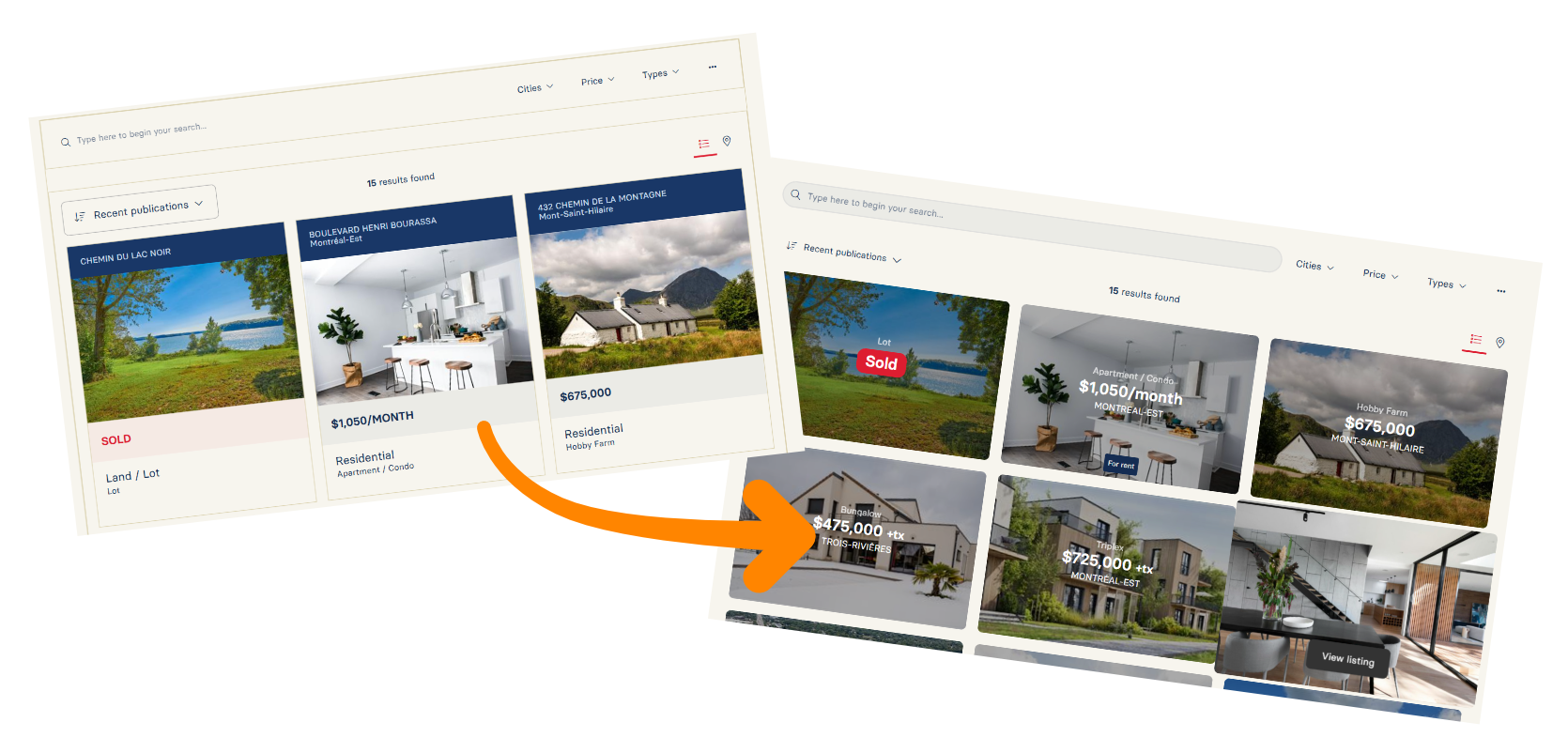
What you need
- moderate to advanced CSS knowledge
- access to server-side files or somewhere to add custom styles to your site
First step: Prepare the list
We will add 3 CSS classes to the list's key objects, move some datas around and clean some others.
Here's the classes for the matching objects:
- List: my-custom-list-display
- Item: my-custom-list-display--item
- Item data group: my-custom-list-display--item-data
In the Source Immo admin configuration page, go to the listings tab and open the list you want to customize
In the window, select the List Display tab and add your custom class. In this case "my-custom-list-display"

Note: When adding a class, type your class name and register it with "Enter"
Do the same in the List Item Display tab and change the displayed datas in the group to match the image below:
- Add "my-custom-list-display--item" classNote: When adding a class, type your class name and register it with "Enter"
- Remove the dark box at the top
- Add the data in the group (subcategory, price, city, rooms, tags)
- Add the link button in the group
At last, add the "my-custom-list-display--item-data" class to the group of data
You can remove the "si-padding" class, but it provide some space on the layer. Space is good.
Note: When adding a class, type your class name and register it with "Enter"
Click OK on every window, wait for the Save completed message and go ahead to the next step.
Step 2: Apply CSS magic
You'll have to copy and paste some CSS to your site for the style to take effect. Based on your setup, you have many options:
- Wordpress
Use the native Appearance / Additional CSS of Wordpress - Page builder Custom CSS
Major page builder tools offer a way to add custom CSS - Server-side file
Your theme styles.css file is automatically include
You should have something like this
CSS Code
Copy the CSS code and paste it in the place of your choice.
Note: We've used the nested CSS syntax for simplicity and structure. While this is mostly supported, it may break on older browser.
For more information, read this article on MDN
For more information, read this article on MDN
Tada!
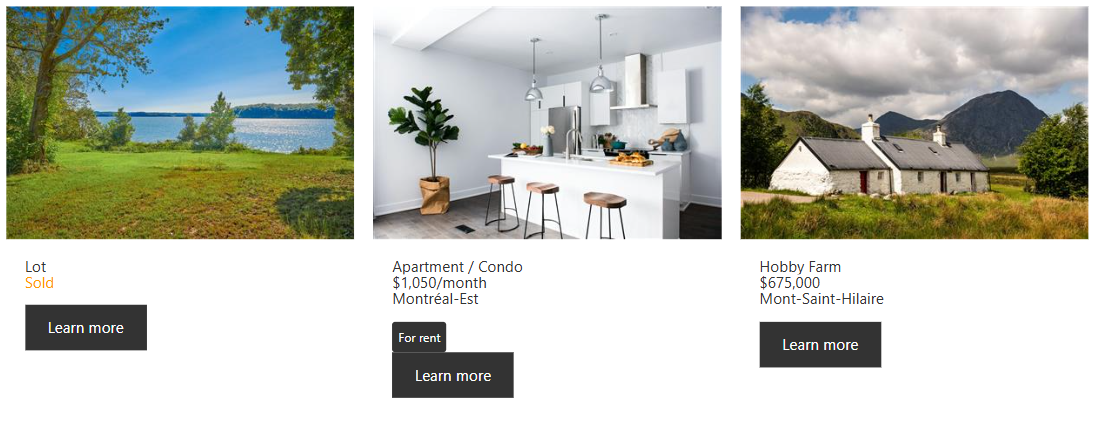
After applying the CSS, you should have something like this as result
Related Articles
How to customize a default label
Sometimes you need to change the default Label used on a button. In some situations like for the listing slider, you can specify it in the shortcode like this [si_list_slider type="hero" limit="5" detail_label="Details" show_navigation="true" ...How to customize detail page layout
Source Immo Detail Page Customization Shortcodes vs Template Overrides Overview Source Immo single detail pages are built from modular template parts located inside: /wp-content/plugins/source-immo/views/single/*_layouts/subs/ Each file inside a ...Source Immo Templating System
Source Immo Templating System Overview Source Immo renders its front-end output using PHP view files located inside the plugin directory: /wp-content/plugins/source-immo/views/ Developers can override any of these view files by replicating the exact ...Procedure for activating the transfer of real estate data from REALTOR.ca's DDF service
To allow Source.Immo, managed by ID-3 Technologies Inc., to receive your Canadian real estate data from the CREA via its Realtor.ca website and its SDD, you must enable data feed transfer by following these steps: Go to the following website: ...